Skip to content

📝 Blog

Sticky - the Way to Quadrupod

As my 4WD slowly evolves, I wanted to think on my next platform.

One of the form that fascinate me is hexapod robots. They quite always looks organics in their moves and it seems that they can be easier to build than full crazy out of price humanoids ;)

Once more, the final push came from Let’s make robot. To be precise, Chopstick junior’s page.
The author, Lumi, has real good tips and tutorials, always finding nice solutions and allows me to think that any material can be used ;)

So it was: I will create some kind of quadrupod, using balsa wood, polymorph and hotglue!

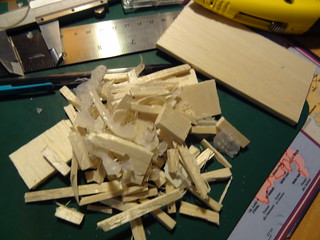
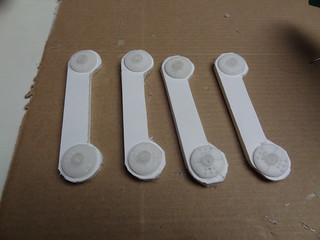
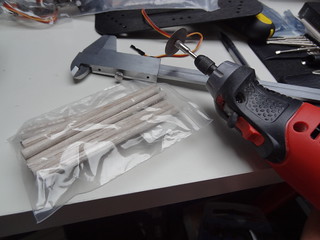
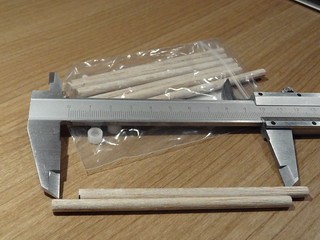
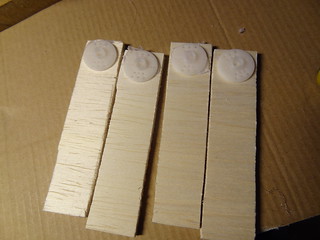
Let’s call it Sticky! I started to cut some light balsa sticks.

first cut the feet segmentsthis is precise enough

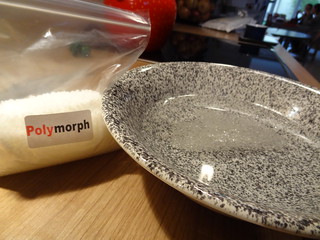
Then came the use of polymorph. It’s a bunch of small grains that you first put in hot water.

polymorph before and begin to melt

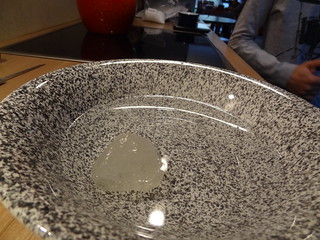
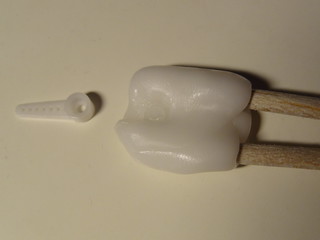
After a little moment, it became a translucid block.

polymorph ready to mold

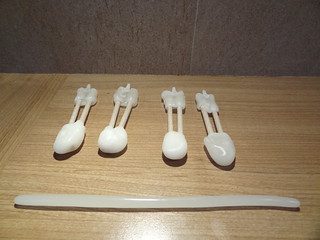
I just had to mold around sticks to create what I could call tibia for the robot. Polymorph can be modelled again and again: just put it back in hot water.

feet ready (will be improved)

Of course, I will have to cut some polymorph to allow Sticky to have nicer feet.

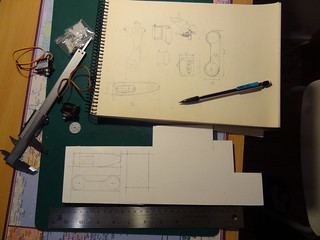
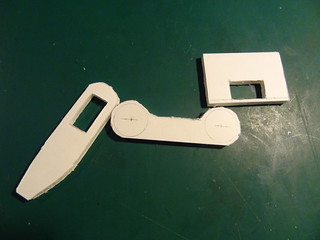
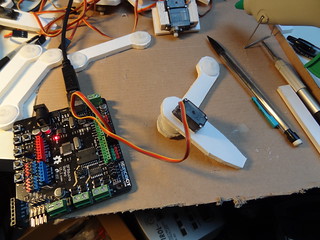
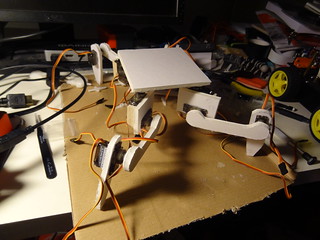
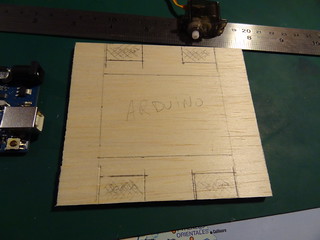
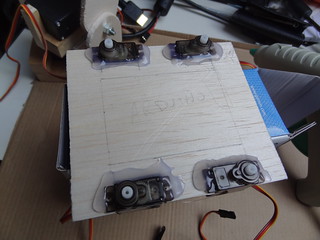
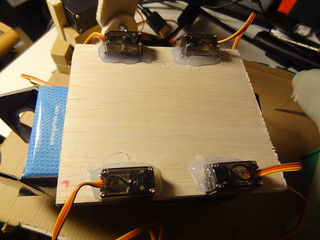
Then, I prepared the plate for the arduino board. Places for the servos were marked.

plan some space for servo

The servos on the platform were fixed using hot glue: quick, strong, fun :)

servo in placeI know, hot glue is devil ;)

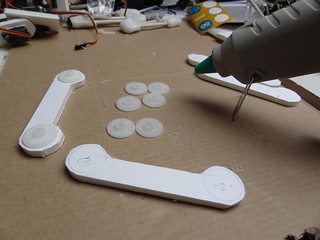
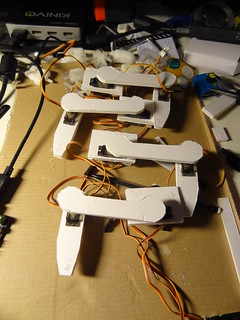
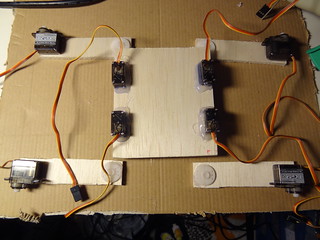
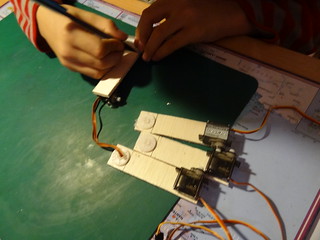
Next part were the femur of the quadrupod. Some balsa wood, hot glue to fix servo horns.

legs

Then fix the femur servo on this.

you get the idea ?

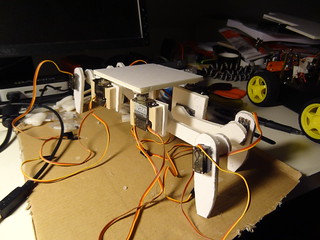
Once every pieces of legs assembled, I thought the femur was too long. Balsa wood is a little bit too flexible.

first assembly to have a look

The second issue was that the tibia servo horns were not glued and polymorph was not keeping it under light effort.

nicely printed, but need some glue

So I asked my junior assistant to shorten the femur while I was glueing the tibia horns.

my assistant at work ;)

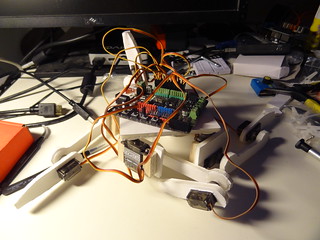
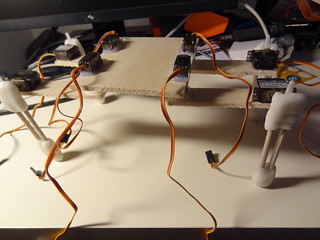
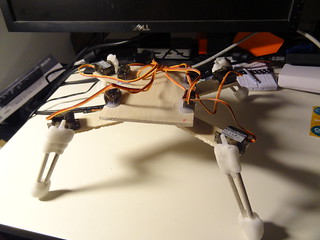
The result was really better:

new leg size

Unfortunately, I used past all along this post because Sticky had an accident.

One night, with no apparent reason, Sticky decided he had to try thrilling experience: he jumped from the desk. Two femurs were broken, one tibia horn broke the polymorph during the fall.

Am I sad?

You will know it… on my next blog post ;)

Full gallery on flickr as usual.

Tilt Pan

First of all: I wish you a happy 2014!

Lot of projects, lots of fun and everything will be good :)

Here, I now need to put down every project I started and try to do minimal planning to have something cool to show ;)

Today, let me show my little experiment on pan tilt feature. I plan to use it somehow with Gary but I had first to see what I can do.

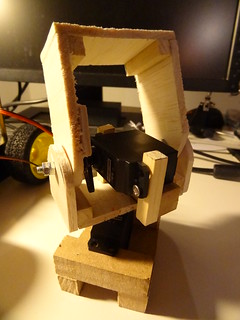
As it is already done, let me show you the little prototype I made:

la bêêête

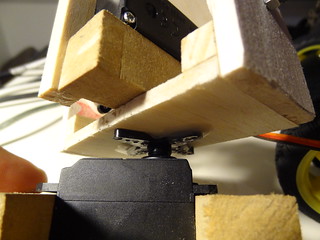
I used wood to quickly see what needs to be done. The pan is a simple servo I had, glued on wood:

pan

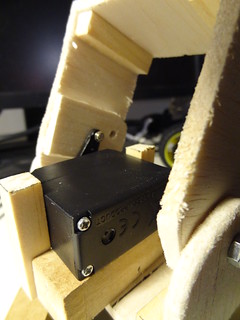
The tilt is the same kind of servo, with a screw:

tilt

The main issue at the end, is even if balsa wood is quick to cut and glue, it is a very bad idea to have two parts sliding on each other.

It works, but use those servos is a bit too much for my plans (moving a small Raspberry Cam).

My next model will use smaller servos and maybe plastic cardboard, or printed part as soon as I get my 3D printer ;)

See you soon…

Pig 5 - Golo Lcd

Once more, I’m back!

Thanks to Golo Community my little tech issue was quickly solved.

Below, you will find the Golo version of the previous posts.
It’s even downloadable here

To launch the golo samples, use the command:

golo golo --classpath /opt/pi4j/lib/*.jar --files <your golo file>

LcdSimple.golo :

module PiG.gpio.LcdSimple

# inspired by https://github.com/Pi4J/pi4j/blob/master/pi4j-example/src/main/java/LcdExample.java
# which is
# Copyright (C) 2012 - 2013 Pi4J
# Licensed under the Apache License, Version 2.0 (the "License")
#
# Golo version by Thierry Chantier
# Copyright (C) 2013 PiG
# Licensed under the Apache License, Version 2.0 (the "License")

import java.text.SimpleDateFormat
import java.util.Date
import java.lang.Thread

import com.pi4j.component.lcd.LCDTextAlignment
import com.pi4j.component.lcd.impl.GpioLcdDisplay
import com.pi4j.io.gpio.GpioController
import com.pi4j.io.gpio.GpioFactory
import com.pi4j.io.gpio.GpioPinDigitalInput
import com.pi4j.io.gpio.PinPullResistance
import com.pi4j.io.gpio.PinState
import com.pi4j.io.gpio.RaspiPin
import com.pi4j.io.gpio.event.GpioPinDigitalStateChangeEvent
import com.pi4j.io.gpio.event.GpioPinListenerDigital

function main = |args| {

    let LCD_ROWS = 2
    let LCD_ROW_1 = 0
    let LCD_ROW_2 = 1
    let LCD_COLUMNS = 16

    println("<--Pi4J--> GPIO 4 bit LCD example program")

    # create gpio controller
    let gpioInstance = GpioFactory.getInstance()

    # initialize LCD
    let lcd = GpioLcdDisplay(LCD_ROWS, # number of row supported by LCD
                            LCD_COLUMNS,       # number of columns supported by LCD
                            RaspiPin.GPIO_11(),  # LCD RS pin
                            RaspiPin.GPIO_10(),  # LCD strobe pin
                            RaspiPin.GPIO_06(),  # LCD data bit 1
                            RaspiPin.GPIO_05(),  # LCD data bit 2
                            RaspiPin.GPIO_04(),  # LCD data bit 3
                            RaspiPin.GPIO_01())  # LCD data bit 4

    # clear LCD
    lcd:clear()
    Thread.sleep(1000_L)

    # write line 1 to LCD
    lcd:write(LCD_ROW_1, "PiG is great!")

    # stop all GPIO activity/threads by shutting down the GPIO controller
    # (this method will forcefully shutdown all GPIO monitoring threads and scheduled tasks)
    gpioInstance: shutdown()
}

Among the several goals I have around those little experiments, I need to be able to show the IP address of my Raspi on the LCD.
This way, it will be easy to use it anywhere and reach it.

The code is available there, even if it looks ugly ;)

module PiG.gpio.LcdSimple

# inspired by https://github.com/Pi4J/pi4j/blob/master/pi4j-example/src/main/java/LcdExample.java
# which is
# Copyright (C) 2012 - 2013 Pi4J
# Licensed under the Apache License, Version 2.0 (the "License")
#
# Golo version by Thierry Chantier
# Copyright (C) 2013 PiG
# Licensed under the Apache License, Version 2.0 (the "License")

import java.text.SimpleDateFormat
import java.util.Date
import java.lang.Thread
import java.net.NetworkInterface
import java.net.InetAddress

import com.pi4j.component.lcd.LCDTextAlignment
import com.pi4j.component.lcd.impl.GpioLcdDisplay
import com.pi4j.io.gpio.GpioController
import com.pi4j.io.gpio.GpioFactory
import com.pi4j.io.gpio.GpioPinDigitalInput
import com.pi4j.io.gpio.PinPullResistance
import com.pi4j.io.gpio.PinState
import com.pi4j.io.gpio.RaspiPin
import com.pi4j.io.gpio.event.GpioPinDigitalStateChangeEvent
import com.pi4j.io.gpio.event.GpioPinListenerDigital

function main = |args| {

    let LCD_ROWS = 2
    let LCD_ROW_1 = 0
    let LCD_ROW_2 = 1
    let LCD_COLUMNS = 16

    println("<--Pi4J--> GPIO 4 bit LCD example program")

    # create gpio controller
    let gpioInstance = GpioFactory.getInstance()

    # initialize LCD
    let lcd = GpioLcdDisplay(LCD_ROWS, # number of row supported by LCD
                            LCD_COLUMNS,       # number of columns supported by LCD
                            RaspiPin.GPIO_11(),  # LCD RS pin
                            RaspiPin.GPIO_10(),  # LCD strobe pin
                            RaspiPin.GPIO_06(),  # LCD data bit 1
                            RaspiPin.GPIO_05(),  # LCD data bit 2
                            RaspiPin.GPIO_04(),  # LCD data bit 3
                            RaspiPin.GPIO_01())  # LCD data bit 4

    for (var i = 0, i < 10, i = i + 1) {
        let e = NetworkInterface.getNetworkInterfaces()
        while (e: hasMoreElements()) {
            let n = e: nextElement()
            let inets = n: getInetAddresses()
            while(inets: hasMoreElements()) {
                lcd:clear()
                Thread.sleep(1000_L)
                let addr = inets: nextElement()
                lcd:write(LCD_ROW_1, " "+addr: getHostAddress())
                Thread.sleep(1000_L)
            }
        }
    }

    # stop all GPIO activity/threads by shutting down the GPIO controller
    # (this method will forcefully shutdown all GPIO monitoring threads and scheduled tasks)
    gpioInstance: shutdown()
}

I’m happy! :)

PiG 4 - Lcd and Java

The plan was to deliver you the Golo version of the previous post code to allow you to write on the LCD.

But it looks like I’ve done too much Java those months and not enough Golo. I’m currently stucked on a technical issue.
I’ll find a way but in the meantime and to keep the new goal to publish more often, I’ll share with you the Java version.

First, you have of course to follow the instruction on the second PiG article

Then, I used two command lines.
First, I compiled the source:

javac -source 7 -target 7 -classpath .:classes:/opt/pi4j/lib/'*' -d . LcdExample.java

Then I ran it:

sudo java -classpath .:classes:/opt/pi4j/lib/'*' LcdExample

You need root permissions to access the GPIO pins.

And finally, the Java code you need:

Download Here!

/*
* adapted from https://github.com/Pi4J/pi4j/blob/master/pi4j-example/src/main/java/LcdExample.java
* which is 
* Copyright (C) 2012 - 2013 Pi4J
* Licensed under the Apache License, Version 2.0 (the "License")
*
* Modified version by Thierry Chantier
* Copyright (C) 2013 PiG
* Licensed under the Apache License, Version 2.0 (the "License")
*
* compile with: javac -source 7 -target 7 -classpath .:classes:/opt/pi4j/lib/'*' -d . LcdExample.java 
* run with: sudo java -classpath .:classes:/opt/pi4j/lib/'*' LcdExample
*/
import java.text.SimpleDateFormat;
import java.util.Date;

import com.pi4j.component.lcd.LCDTextAlignment;
import com.pi4j.component.lcd.impl.GpioLcdDisplay;
import com.pi4j.io.gpio.GpioController;
import com.pi4j.io.gpio.GpioFactory;
import com.pi4j.io.gpio.GpioPinDigitalInput;
import com.pi4j.io.gpio.PinPullResistance;
import com.pi4j.io.gpio.PinState;
import com.pi4j.io.gpio.RaspiPin;
import com.pi4j.io.gpio.event.GpioPinDigitalStateChangeEvent;
import com.pi4j.io.gpio.event.GpioPinListenerDigital;

public class LcdExample {

    public final static int LCD_ROWS = 2;
    public final static int LCD_ROW_1 = 0;
    public final static int LCD_ROW_2 = 1;
    public final static int LCD_COLUMNS = 16;
    public final static int LCD_BITS = 4;

    public static void main(String args[]) throws InterruptedException {

        System.out.println("<--Pi4J--> GPIO 4 bit LCD example program");

        // create gpio controller
        final GpioController gpio = GpioFactory.getInstance();

        // initialize LCD
        final GpioLcdDisplay lcd = new GpioLcdDisplay(LCD_ROWS,          // number of row supported by LCD
                                                LCD_COLUMNS,       // number of columns supported by LCD
                                                RaspiPin.GPIO_11,  // LCD RS pin 
                                                RaspiPin.GPIO_10,  // LCD strobe pin
                                                RaspiPin.GPIO_06,  // LCD data bit 1
                                                RaspiPin.GPIO_05,  // LCD data bit 2
                                                RaspiPin.GPIO_04,  // LCD data bit 3
                                                RaspiPin.GPIO_01); // LCD data bit 4

        // clear LCD
        lcd.clear();
        Thread.sleep(1000);

        // write line 1 to LCD
        lcd.write(LCD_ROW_1, "Pi4J is great!");


        // stop all GPIO activity/threads by shutting down the GPIO controller
        // (this method will forcefully shutdown all GPIO monitoring threads and scheduled tasks)
        // gpio.shutdown();   <--- implement this method call if you wish to terminate the Pi4J GPIO controller                
    }
}

I’m going to practice basics of Golo again, my brain is not on full steam those days ;)

See you soon!

PiG 3 - LCD Use

Last time, I explained how to use you Pi to interact with a LED using Golo. Let’s see something a bit stronger.

As I told you in my first Raspberry post, I bought a bunch of HD44780U LCD.

Those little LCD can be controled in 2 modes: 4 or 8 bits.
To minimize the number of GPIO pins used, I choosed the 4 bits mode.
It uses only 6 pins to write to the LCD instead of 11 with 8 bits mode.
The only drawbacks is that you have to write the 4 most significant bits first, use a validation impulse on LCD pin 6 (enable pin), then write the 4 least significant bits.

So first, use one of the existing schema on internet to wire your LCD to the GPIO. I used one from Zem.fr

This schema is working, clear… and show a pot to define contrast!

If you read french, take some time to read the full article there, first part has a good introduction to Raspberry GPIO and this LCD.

Here is my wiring:

Lots of wiresMy good old fellow: my breadboard

The next step was to test this wiring and I used the python script provided once more in this article. Just be careful that you use tabs in your python code after copy/paste.

#!/usr/bin/python

import RPi.GPIO as GPIO
from time import sleep
class HD44780:

  def __init__(self, pin_rs=7, pin_e=8, pins_db=[25, 24, 23, 18]):

      self.pin_rs=pin_rs
      self.pin_e=pin_e
      self.pins_db=pins_db

      GPIO.setmode(GPIO.BCM)
      GPIO.setup(self.pin_e, GPIO.OUT)
      GPIO.setup(self.pin_rs, GPIO.OUT)
      for pin in self.pins_db:
          GPIO.setup(pin, GPIO.OUT)

      self.clear()

  def clear(self):
      """ Blank / Reset LCD """

      self.cmd(0x33) # $33 8-bit mode
      self.cmd(0x32) # $32 8-bit mode
      self.cmd(0x28) # $28 8-bit mode
      self.cmd(0x0C) # $0C 8-bit mode
      self.cmd(0x06) # $06 8-bit mode
      self.cmd(0x01) # $01 8-bit mode

  def cmd(self, bits, char_mode=False):
      """ Send command to LCD """

      sleep(0.001)
      bits=bin(bits)[2:].zfill(8)

      GPIO.output(self.pin_rs, char_mode)

      for pin in self.pins_db:
          GPIO.output(pin, False)

      for i in range(4):
          if bits[i] == "1":
              GPIO.output(self.pins_db[::-1][i], True)

      GPIO.output(self.pin_e, True)
      GPIO.output(self.pin_e, False)

      for pin in self.pins_db:
          GPIO.output(pin, False)

      for i in range(4,8):
          if bits[i] == "1":
              GPIO.output(self.pins_db[::-1][i-4], True)


      GPIO.output(self.pin_e, True)
      GPIO.output(self.pin_e, False)

  def message(self, text):
      """ Send string to LCD. Newline wraps to second line"""

      for char in text:
          if char == '\n':
              self.cmd(0xC0) # next line
          else:
              self.cmd(ord(char),True)

if __name__ == '__main__':

  lcd = HD44780()
  lcd.message(" Sure it works! ")

Just for your eyes, a picture from what Zem.fr script is providing.

It works!

Now we are all set!

Wait? What? Where’s PiG?

I know, I know, this is my goal here.
But let’s meditate a moment: is it better to blog once every 6 months when a project is complete or post each little experiment steps?

See you soon ;)